
Think for a second about what filing a TDS return used to involve: download the RPU, update Java, fill in the data, generate the FVU, start again when an error comes up, and finally upload. That is no longer needed. The Income Tax Department has enabled a new option on TRACES that lets you file a TDS return online on TRACES, much like an income tax return. Challans import on their own, basic details fill in automatically, and the statement is submitted with an Aadhaar OTP.
In this guide, I file a live Form No. 140 for Q2 of Tax Year 2026-27, step by step, and explain the seven mistakes that can happen in the new system. This matters because once you submit, the return cannot be edited.
TDS return online on TRACES: at a glance
Form: No. 140 — quarterly TDS statement for non-salary payments to residents (old Form 26Q)
Example used: Q2 (July–September), Tax Year 2026-27 — due 31 October 2026
What you no longer need: RPU, FVU or Java for this online route
Online entry: comfortably up to 200 deductee records; bulk template for more
Submission: Aadhaar OTP of the responsible person, or DSC
After submission: no editing — only a correction statement, after CPC processing

WhatsApp Channel for notes and updates on GST, Income Tax, TDS, TCS, Export and Accountancy: whatsapp.com/channel/0029Va6GOVE9MF92Ylmo7e0L
Quick Recap: New TDS Form Numbers from 1 April 2026
The Income-tax Act, 2025 has applied from 1 April 2026, so the TDS form numbers have changed. The financial year and assessment year are replaced by a single tax year, and the certificates have new names too.
| Old form | New form | What it is |
|---|---|---|
| Form 24Q | Form 138 | TDS statement — salary |
| Form 26Q | Form 140 | TDS statement — non-salary payments to residents |
| Form 27Q | Form 144 | TDS statement — payments to non-residents |
| Form 27EQ | Form 143 | TCS statement |
| Form 16 | Form 130 | TDS certificate — salary |
| Form 16A | Form 131 | TDS certificate — non-salary |
| Form 26AS | Form 168 | Annual tax statement of the deductee |
We file Form 140 here, but the process is almost the same for the other statement forms, whether you deal with salary or TCS. Remember: the form number has changed; the work is the same.
Before You Start: 5 Things to Keep Ready
Keep these five things on your table before you open the portal, otherwise the session can time out midway:
- TRACES login with your TAN.
- All challans of the quarter, with BSR code, date of deposit and challan serial number.
- The complete deductee list: PAN, name, date of payment, amount, TDS, rate and payment code.
- PAN status check: catch inoperative or invalid PANs now, not later.
- The responsible person’s Aadhaar-linked mobile, because the OTP will come on that number.
Check the challan tax year
While creating the challan you would have selected Tax Year 2026-27. If the old assessment-year option was chosen by mistake, catch the mismatch now, before filing, not after.
Step-by-Step: File Form No. 140 Online on TRACES
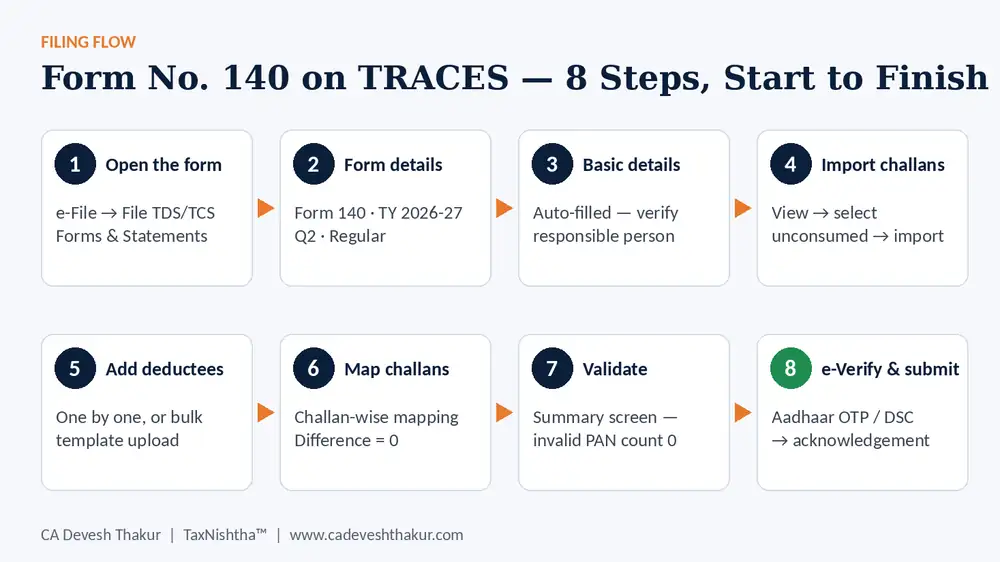
Step 1: Open File TDS/TCS Forms & Statements
After logging in, go to the e-File menu and click File TDS/TCS Forms & Statements. You will see four forms: 138, 140, 143 and 144. Select Form No. 140.
Step 2: Select the Tax Year, Quarter and Type
- Tax Year: 2026-27
- Quarter: Q2 — July, August and September (due 31 October 2026)
- Type: Regular. A separate option is given for correction statements.
Important limit: 200 records
Online entry comfortably handles up to 200 records. If you have more than 200 deductees, the annexure template and its help file are given on the same page. Download the template, paste your data and upload it.
Step 3: Verify the Auto-Filled Basic Details
As soon as you proceed, your basic details fill in automatically. The details we used to type into the RPU every quarter now come in on their own. Do not touch the grey fields; they belong to the system. Just select the deductor type, verify the authorised (responsible) person’s details once, and click Save & Continue.
Step 4: Import the Challans
This is the best part of the new system. Click View and your unconsumed challans appear. The challans of all three months are listed. Select them and click Import. That is it.
Split interest, fee and penalty
If you paid interest, fee or penalty along with tax in any challan, the system does not split it on its own. Go to View Details → Edit and bifurcate the amount into the correct heads. Miss this step and you can get a short payment or default notice.
Step 5: Add Deductees
There are two ways. If the entries are few, use Add Deductee and add them one by one. If there are many, fill the template and upload it through Add Bulk Deductee. In each entry, take care of the following:
- Section / payment code: choose it from the dropdown. These are the codes of the new Act; do not rely on the old section numbering. This is the mistake that causes the most corrections later.
- Fill in PAN, name, date of payment or credit, amount and TDS.
- The date of deduction and rate partly auto-fill, but cross-check them once.
- Lower deduction certificate: first select the reason; only then does the certificate field open.
- Made a mistake? Fix it from View & Edit. Everything stays editable until you submit.
Step 6: Map Every Deductee to the Right Challan
Click Challan Mapping and choose challan-wise. The BSR code and date of deposit at the top help you identify each challan. As you tick deductees, the mapped amount and difference update live.
The golden rule: make the difference zero
If any amount is left over, either a deductee entry has been missed or extra money was deposited. Do not proceed until the difference is zero.
Step 7: Validate the Statement and Review the Summary
Once all challans are mapped, click Validate Statement, confirm, and press Refresh. The summary screen appears. Take a screenshot of this screen and check:
- How many challans are there, and how many rows are mapped?
- Does the challan amount match the TDS claimed?
- What is the count of inoperative or invalid PANs? It should be zero, otherwise a higher-rate issue can arise.
Step 8: e-Verify and Submit
If everything is in order, click Proceed to e-Verification. Choose Aadhaar OTP or DSC, whichever you have, give your consent, enter the OTP and Submit. Your return is filed. Download the acknowledgement; it contains the provisional receipt number.
7 Mistakes to Avoid in the New TDS Filing System
| # | Mistake | Why it hurts / what to do |
|---|---|---|
| 1 | Thinking you can fix it after submitting | Once Form 140 is submitted it cannot be edited. Only a correction statement can be filed, and only after CPC processing. |
| 2 | Not splitting interest or fee in the challan | If it goes into the tax head, it can show as a default. |
| 3 | Wrong payment code / section code | The most common error. Choose the new-Act code from the dropdown carefully. |
| 4 | Ignoring the challan difference | Do not ignore even a small difference; make it zero. |
| 5 | Typing more than 200 records by hand | Use the template and save hours. |
| 6 | Skipping the PAN check | An inoperative PAN means TDS had to be deducted at a higher rate; if it was not, there is a problem. |
| 7 | Waiting for the deadline | Q2 is due 31 October. Late filing attracts a late fee of ₹200 per day, capped at the TDS amount, and the deductee gets credit late. |
Bonus point: correction deadline
A correction statement for Q2 of Tax Year 2026-27 can be filed up to 31 March 2029 (within two years from the end of the tax year in which the statement was due). But if the original is filed correctly, you will never need a correction.
What Happens After You File
- Your statement is processed by CPC (TDS). The result comes in two forms: with default or without default.
- If there is a default, check the justification report and fix it through a correction statement or by paying the shortfall.
- After processing, download Form No. 131 (the old Form 16A) from TRACES and give it to your deductees.
- The TDS credit reflects in the deductee’s Form No. 168 (the old Form 26AS).
- To check status, go to e-File → View Filed Forms & Statements; the filing date, details and acknowledgement are all there.
Has the RPU Been Discontinued? Which Route Should You Use?
No. The online option is an additional route, not a replacement. Choose based on your volume:
| Your situation | Best route |
|---|---|
| Small business, or only a few deductees | TRACES online — the fastest |
| More than 200 deductees | TRACES online with bulk annexure upload |
| CA firm handling many TANs | Software or the RPU-based workflow still works |
Work that used to take hours with the utility, FVU and errors is now a 15–20 minute job on the portal. Just follow the checklist and avoid the seven mistakes.
Frequently Asked Questions
Can I file a TDS return online on TRACES without RPU and FVU?
Yes. For Tax Year 2026-27, TRACES offers an online option to prepare and submit TDS statements such as Form No. 140 directly on the portal, without the RPU, FVU or Java. Challans are imported from the portal and the statement is submitted with Aadhaar OTP or DSC.
What is Form No. 140?
Form No. 140 is the quarterly statement of TDS on payments other than salary to residents under the Income-tax Act, 2025. It replaces the earlier Form 26Q from Tax Year 2026-27.
What are the new TDS form numbers under the Income-tax Act, 2025?
Form 24Q is now Form 138, Form 26Q is Form 140, Form 27Q is Form 144 and Form 27EQ is Form 143. The certificates Form 16 and Form 16A are now Form 130 and Form 131, and Form 26AS is now Form 168.
What is the due date of the Q2 TDS return for Tax Year 2026-27?
The Form 140 statement for Q2 (July to September 2026) is due on 31 October 2026.
Can I edit the TDS return after submitting it online?
No. Once Form 140 is submitted it cannot be edited. Mistakes can be fixed only through a correction statement, and that too after the original statement has been processed by CPC (TDS).
Till when can I file a correction statement for Q2 of Tax Year 2026-27?
Correction statements can be filed within two years from the end of the tax year in which the original statement was due. For Q2 of Tax Year 2026-27, that is up to 31 March 2029.
How many deductee records can be entered online?
Online entry comfortably handles up to 200 records. For more deductees, download the annexure template given on the same page, fill it and upload it in bulk.
What is the late fee for filing the TDS return late?
A late fee of ₹200 per day applies until the statement is filed, capped at the amount of TDS.
Has the RPU been discontinued?
No. The online route is an additional option. Small businesses and deductors with few deductees can use TRACES online; firms handling many TANs can continue with software or the utility-based workflow.