
From Tax Year 2026-27, the familiar Form 16A is gone. Under the Income-tax Act, 2025, the TDS certificate for payments other than salary is now Form No. 131, and it is downloaded from the new TRACES portal through a changed process. If you are a deductor, an accountant or a tax professional, this guide shows you exactly how to download Form 131 from TRACES, convert it into a digitally signed PDF and share it with your deductees.
Every step below has a screenshot from the actual portal (client details hidden), so you can follow along screen by screen.
Form 131 at a glance
What it is: quarterly TDS certificate for payments other than salary (the new Form 16A)
Law: Sec. 395(4)(a) of the Income-tax Act, 2025 (corresponding to Sec. 203 of the 1961 Act)
Issued by: the deductor, to each deductee
Pre-condition: the quarterly TDS statement in Form 140 must be processed on TRACES
Source: must be downloaded from TRACES; a self-prepared certificate is not valid
ZIP password: TAN of the deductor (PAN for provisional certificates)

WhatsApp Channel for notes and updates on GST, Income Tax, TDS, TCS, Export and Accountancy: whatsapp.com/channel/0029Va6GOVE9MF92Ylmo7e0L
What Is Form No. 131? The New Form 16A Explained
Form No. 131 is the TDS certificate that a deductor issues to a deductee for tax deducted on payments other than salary, such as professional fees, contract payments, rent, commission or interest. It is issued under Sec. 395(4)(a) of the Income-tax Act, 2025, which corresponds to Sec. 203 of the Income-tax Act, 1961. In simple terms, Form 131 is the renamed and restructured Form 16A.
| Point | Old law (Income-tax Act, 1961) | New law (Income-tax Act, 2025) |
|---|---|---|
| Non-salary TDS certificate | Form 16A | Form No. 131 |
| Quarterly non-salary TDS statement | Form 26Q | Form No. 140 |
| Period used | Financial year / assessment year | Tax year (from Tax Year 2026-27) |
| Where to download | TRACES | New TRACES (older periods via the 1961-Act menu) |
Due Dates to Issue Form 131 for Tax Year 2026-27
Form 131 is issued quarterly, within 15 days from the due date of filing the quarterly TDS statement:
| Quarter | Period | Form 140 statement due | Form 131 due |
|---|---|---|---|
| Q1 | April – June 2026 | 31 July 2026 | 15 August 2026 |
| Q2 | July – September 2026 | 31 October 2026 | 15 November 2026 |
| Q3 | October – December 2026 | 31 January 2027 | 15 February 2027 |
| Q4 | January – March 2027 | 31 May 2027 | 15 June 2027 |
Since the certificate can be generated only after the statement is processed, file your Form 140 well before the due date so that TRACES has time to process it.
The Complete Process in 5 Stages
Downloading Form 131 is a five-stage process: check that the statement is processed, request the certificate, download the ZIP, get the PDF Generation Utility, and generate the signed PDF.
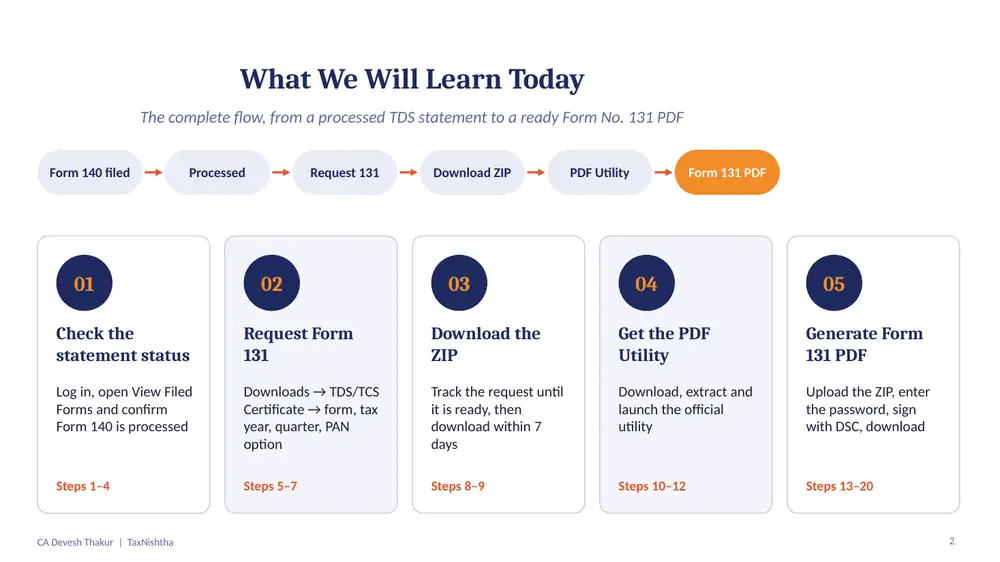
- Check the statement status (Steps 1–4): log in and confirm Form 140 is processed.
- Request Form 131 (Steps 5–7): Downloads → TDS/TCS Certificate → form, tax year, quarter and PAN option.
- Download the ZIP (Steps 8–9): track the request and download it within 7 days.
- Get the PDF Utility (Steps 10–12): download, extract and launch the official utility.
- Generate the Form 131 PDF (Steps 13–20): upload the ZIP, enter the password, sign with DSC and download.
Stage 1: Check the TDS Statement Status on TRACES
Step 1: Log in to TRACES with your TAN
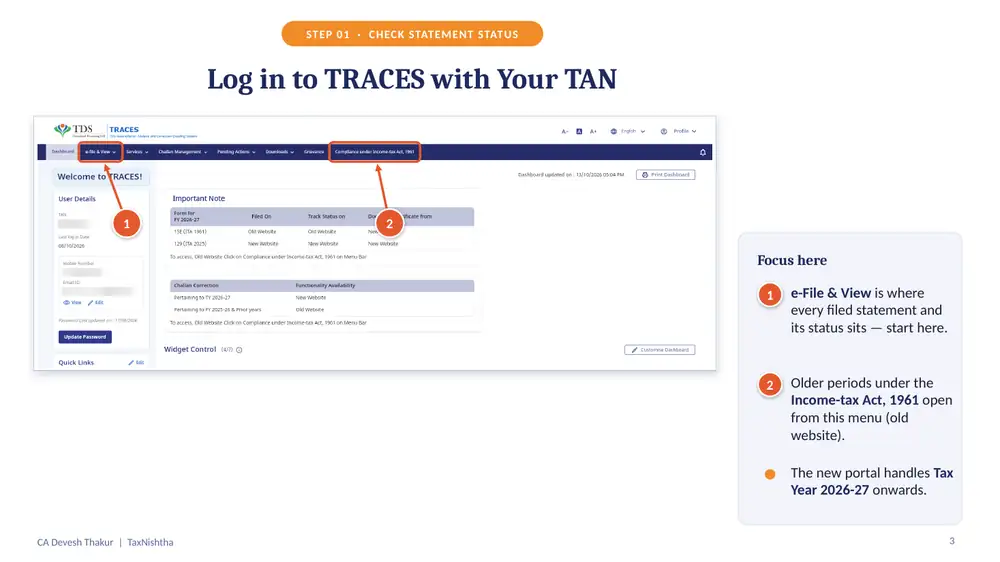
Log in to TRACES as a deductor using your TAN. On the dashboard, the e-File & View menu is where every filed statement and its status sits, so start there.
- Periods under the Income-tax Act, 1961 (Form 16A era) open from a separate menu that takes you to the old website.
- The new portal handles Tax Year 2026-27 onwards, which is where Form 131 lives.
Step 2: Open e-File & View, then View Filed Forms & Statements
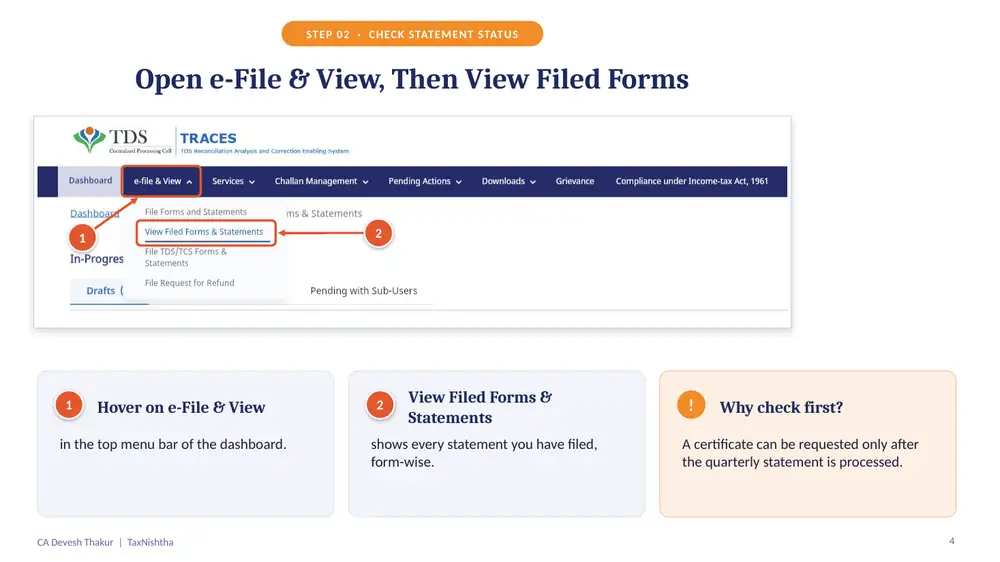
Hover on e-File & View in the top menu and click View Filed Forms & Statements. This page shows every statement you have filed, form by form.
Why check first?
A TDS certificate can be requested only after the quarterly statement has been processed. Skipping this check is the most common reason the Form 131 request does not go through.
Step 3: Pick Form No. 140, the non-salary TDS statement
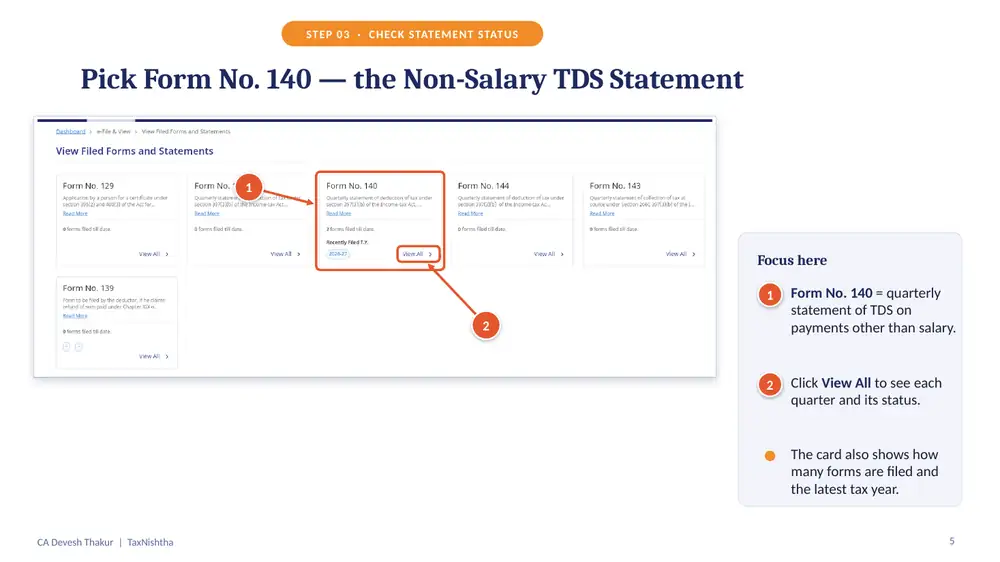
Form No. 140 is the quarterly statement of TDS on payments other than salary (the new Form 26Q). Click View All on its card to see every quarter and its status. The card also shows how many forms are filed and the latest tax year.
Step 4: Confirm the status is ‘Processed without Default’
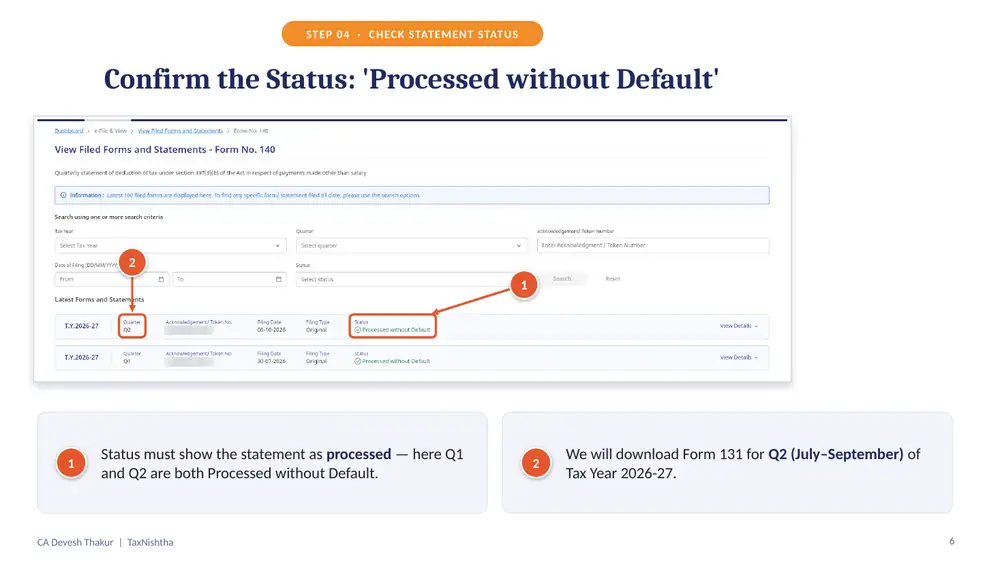
The statement must show as processed. In this example, both Q1 and Q2 show Processed without Default, so we will download Form 131 for Q2 (July–September) of Tax Year 2026-27.
Stage 2: Request Form 131 on TRACES
Step 5: Go to Downloads and pick Download TDS/TCS Certificate
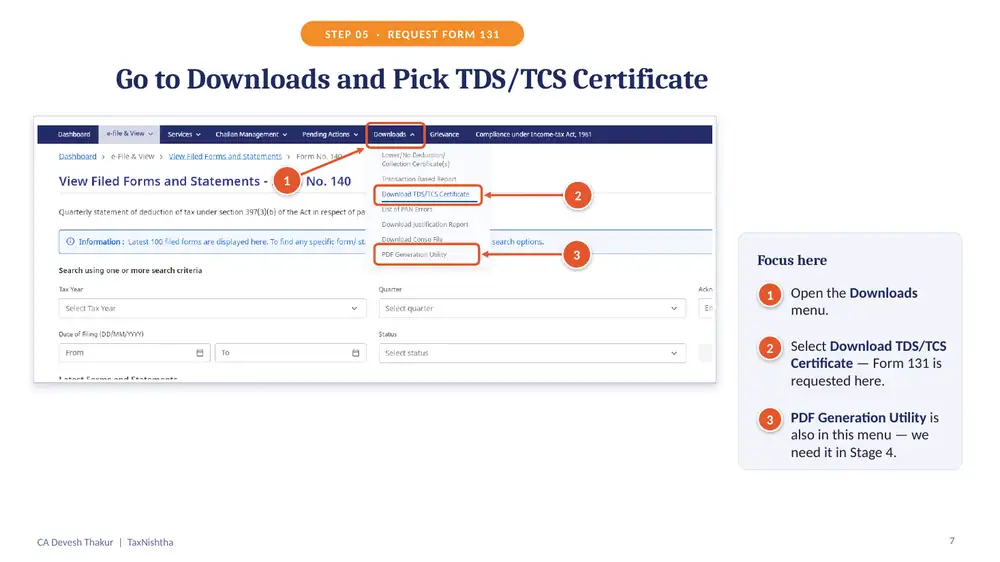
Open the Downloads menu and select Download TDS/TCS Certificate. This is where Form 131 is requested. Note that the PDF Generation Utility is in the same menu; you will need it in Stage 4.
Step 6: Select Form No. 131, the tax year and the quarter
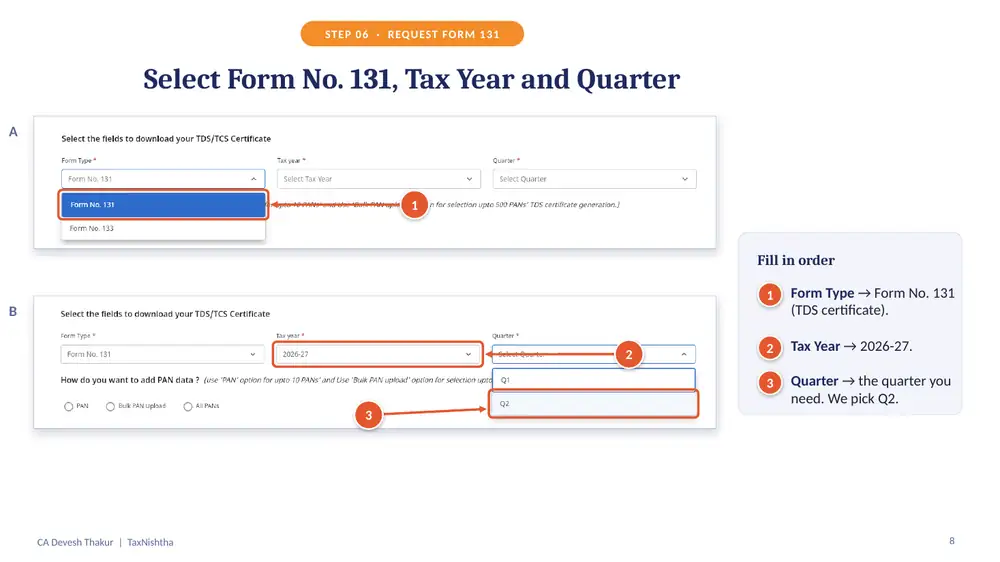
Fill in the fields in order:
- Form Type: Form No. 131 (TDS certificate)
- Tax Year: 2026-27
- Quarter: the quarter you need (Q2 in this example)
Step 7: Choose how to add PANs and click Initiate Request
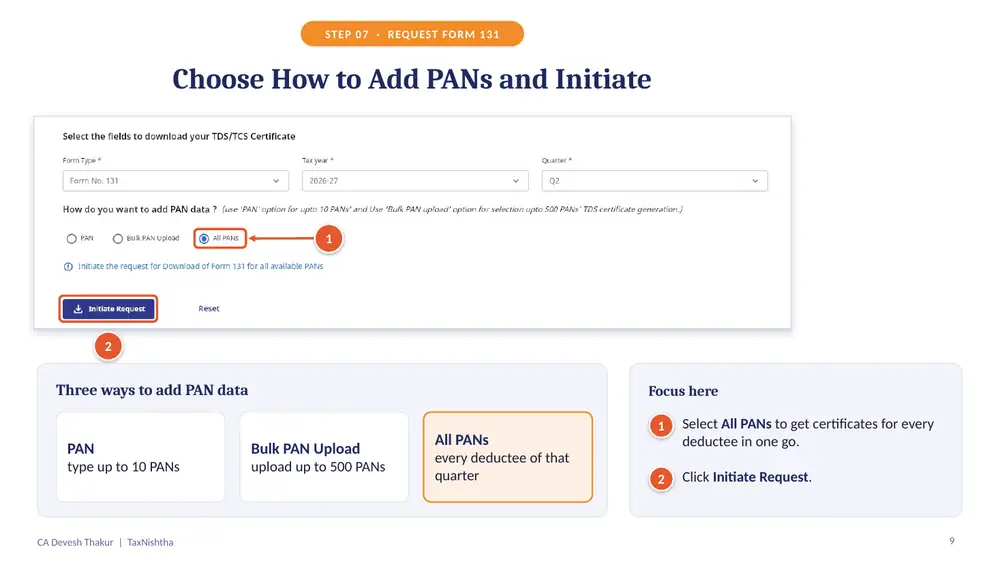
TRACES gives three ways to add deductee PANs:
| Option | Use it when |
|---|---|
| PAN | You need certificates for a few deductees: type up to 10 PANs |
| Bulk PAN Upload | You have a list: upload up to 500 PANs |
| All PANs | You want certificates for every deductee of that quarter in one go |
Select All PANs to get certificates for every deductee at once, then click Initiate Request.
Stage 3: Download the Form 131 ZIP File
Step 8: Track the request until it is Ready for Download
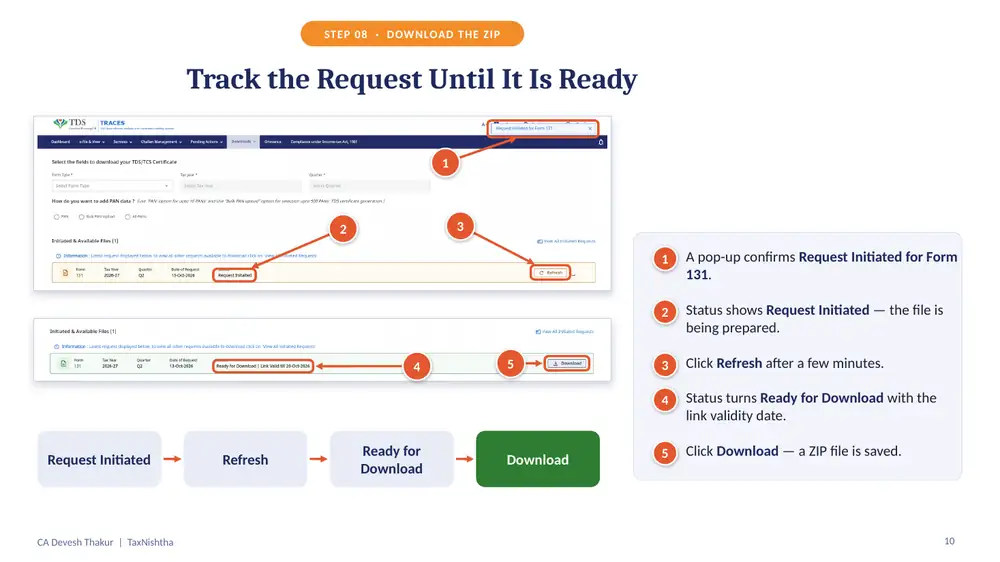
A pop-up confirms Request Initiated for Form 131 and the status shows that the file is being prepared. Click Refresh after a few minutes. When the status turns Ready for Download (with the link validity date), click Download. A ZIP file is saved to your computer.
Step 9: Use All Initiated Requests: files stay for 7 days
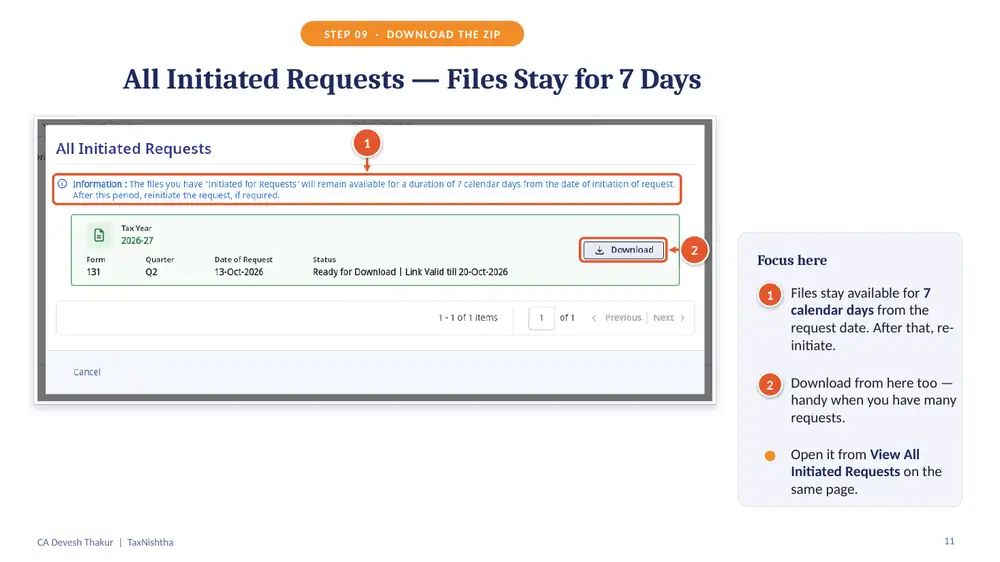
Open View All Initiated Requests on the same page to see every request you have raised. You can download from here too, which is handy when you have many requests.
Remember the 7-day window
Requested files stay available for 7 calendar days from the date of the request. After that, you must initiate a fresh request.
Stage 4: Get the TRACES PDF Generation Utility
Step 10: Download the PDF Generation Utility
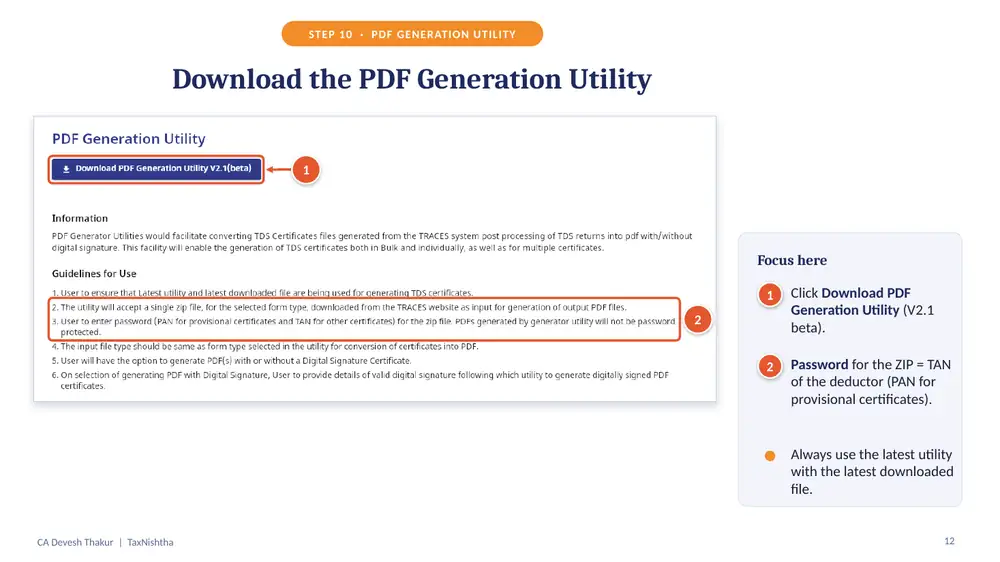
From Downloads → PDF Generation Utility, click Download PDF Generation Utility (version V2.1 beta at the time of recording).
- Password for the Form 131 ZIP: the TAN of the deductor (the PAN for provisional certificates).
- Always use the latest utility with the latest downloaded file.
Step 11: Extract the package and run the utility
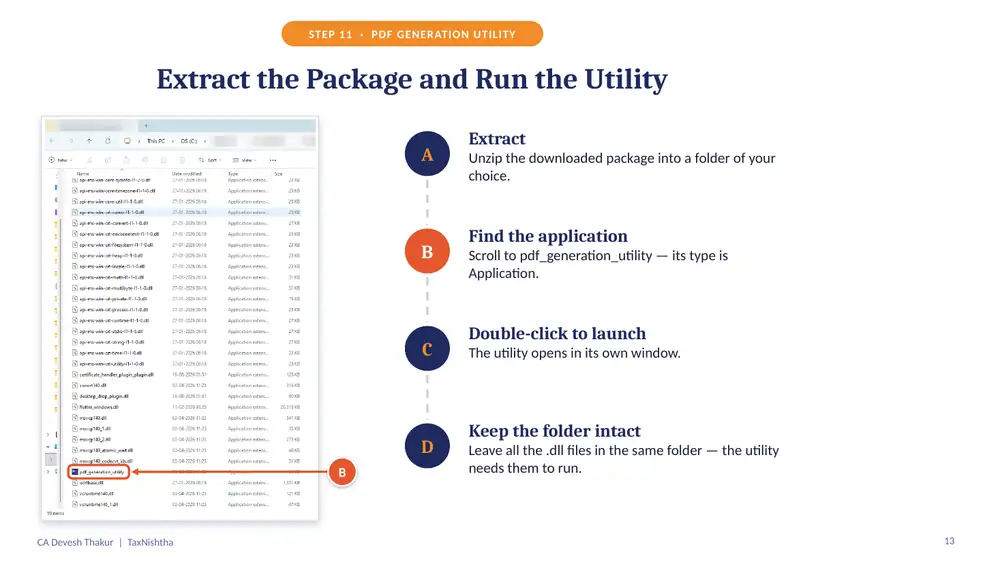
- Extract: unzip the downloaded package into a folder of your choice.
- Find the application: scroll to pdf_generation_utility; its type is Application.
- Double-click to launch: the utility opens in its own window.
- Keep the folder intact: leave all the .dll files in the same folder; the utility needs them to run.
Step 12: Launch the utility and click Get Started
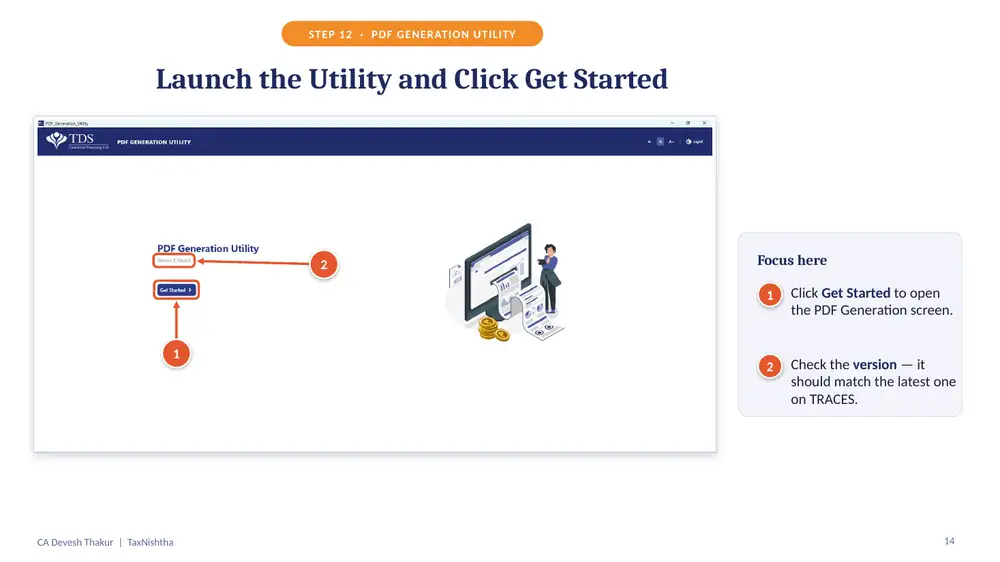
Click Get Started to open the PDF Generation screen. Check that the version matches the latest one shown on TRACES.
Stage 5: Generate the Form 131 PDF
Step 13: Know the five fields on the screen
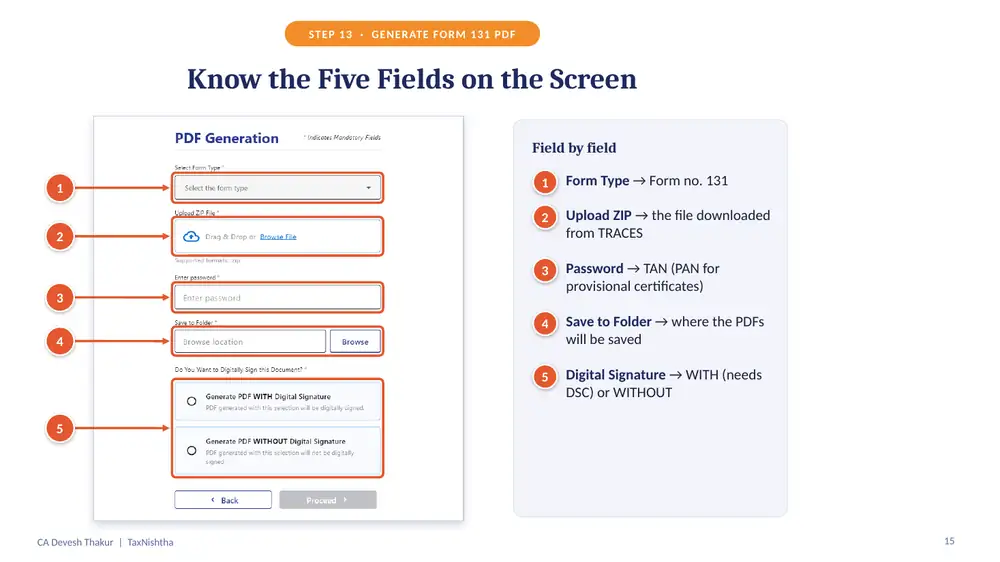
- Form Type: Form no. 131
- Upload ZIP: the file downloaded from TRACES
- Password: TAN (PAN for provisional certificates)
- Save to Folder: where the PDFs will be saved
- Digital Signature: WITH (needs a DSC) or WITHOUT
Step 14: Fill in the details
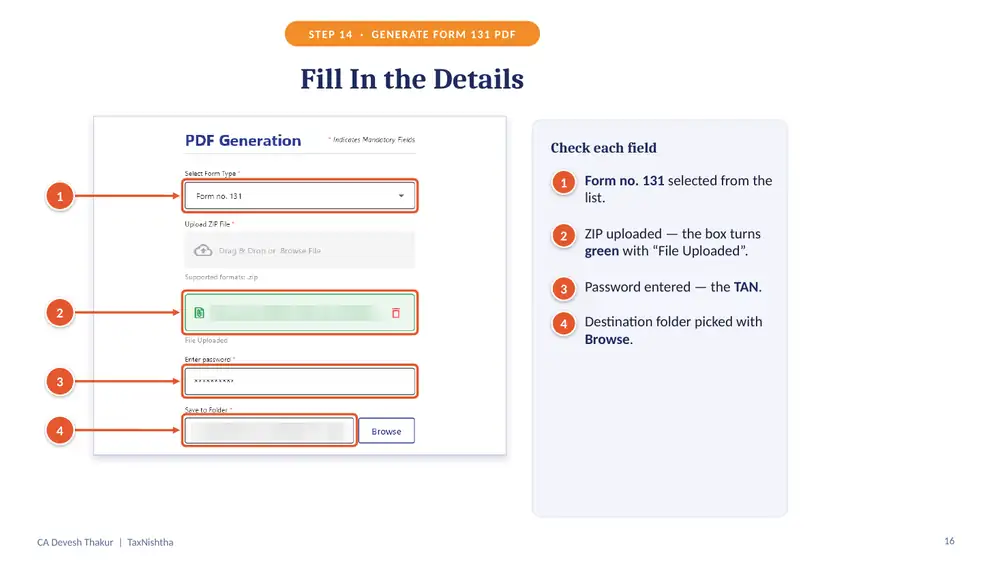
Select Form no. 131, upload the ZIP (the box turns green with “File Uploaded”), enter the TAN as password and pick the destination folder with Browse.
Step 15: Choose WITH Digital Signature and Proceed
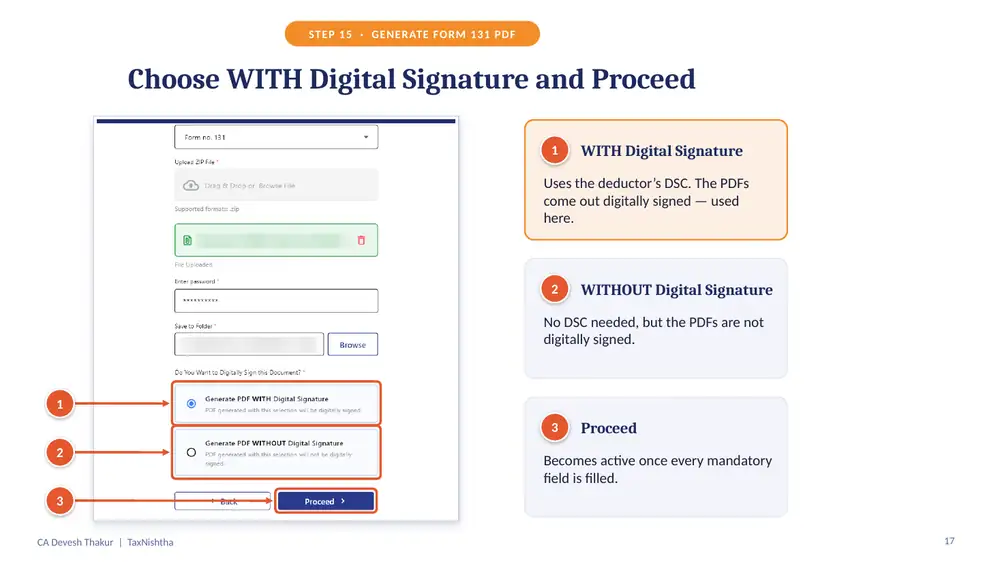
- WITH Digital Signature: uses the deductor’s DSC, so the PDFs come out digitally signed. This option is used here.
- WITHOUT Digital Signature: no DSC is needed, but the PDFs are not digitally signed and must be signed manually before issue.
- Proceed becomes active once every mandatory field is filled.
Step 16: Pick your DSC: two ways
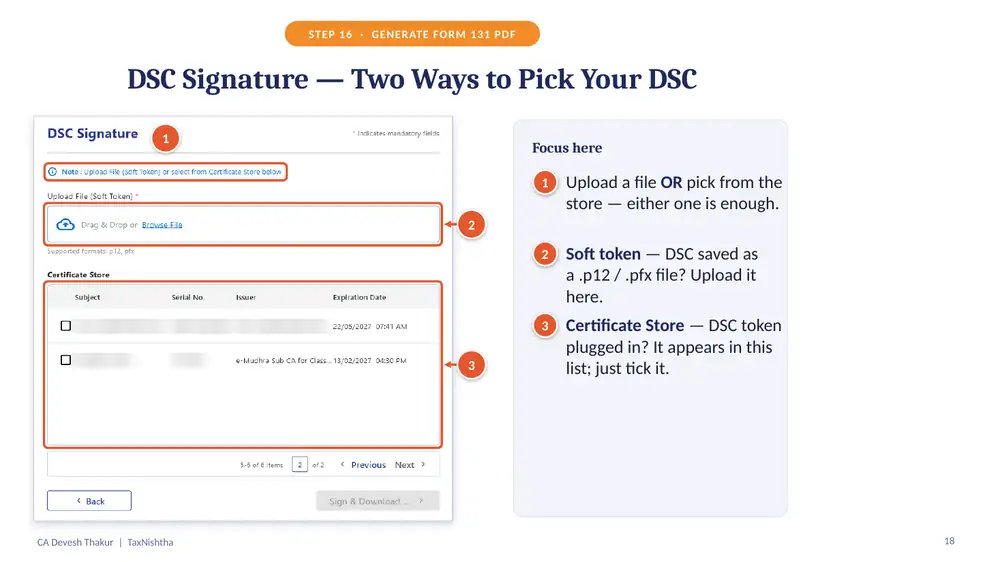
Either option is enough:
- Soft token: if your DSC is saved as a .p12 or .pfx file, upload it here.
- Certificate Store: if your DSC token is plugged in, it appears in this list; just tick it.
Step 17: Tick the deductor’s DSC and click Sign & Download
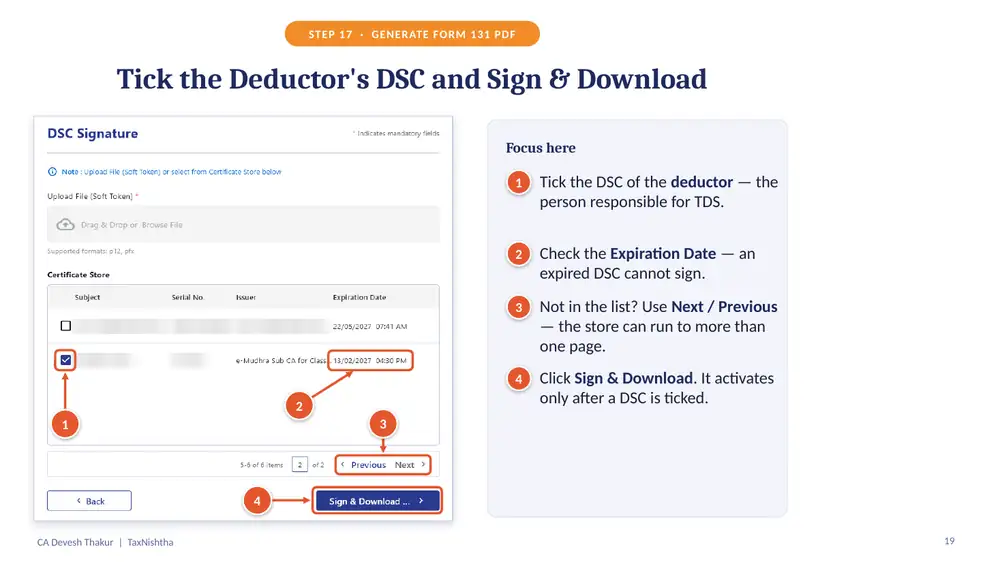
- Tick the DSC of the deductor, the person responsible for TDS.
- Check the Expiration Date; an expired DSC cannot sign.
- Not in the list? Use Next / Previous; the store can run to more than one page.
- Click Sign & Download. It activates only after a DSC is ticked.
Step 18: Done: one signed PDF for every PAN
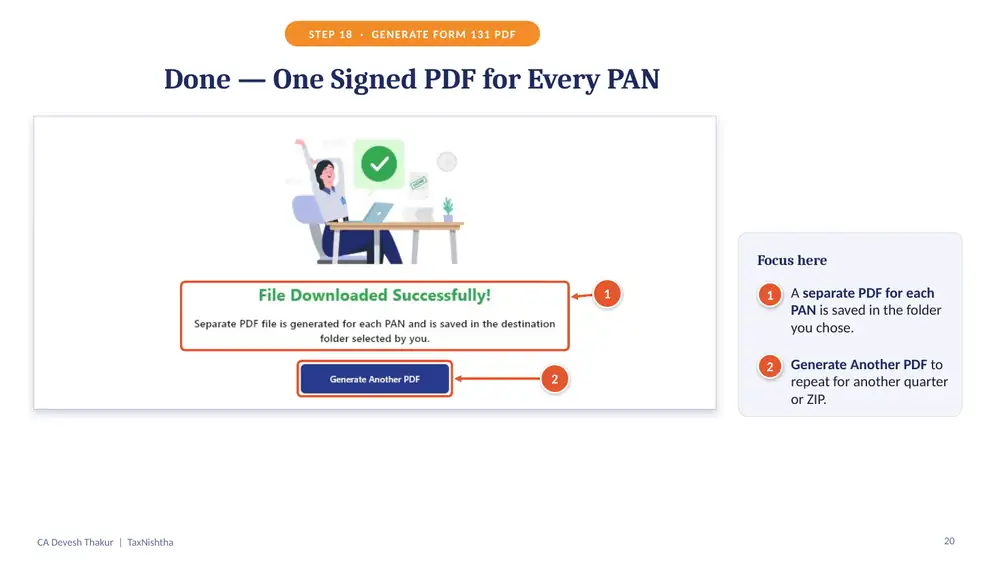
The utility saves a separate PDF for each PAN in the folder you chose. Click Generate Another PDF to repeat for another quarter or ZIP.
Step 19: Find the _SIGNED folder
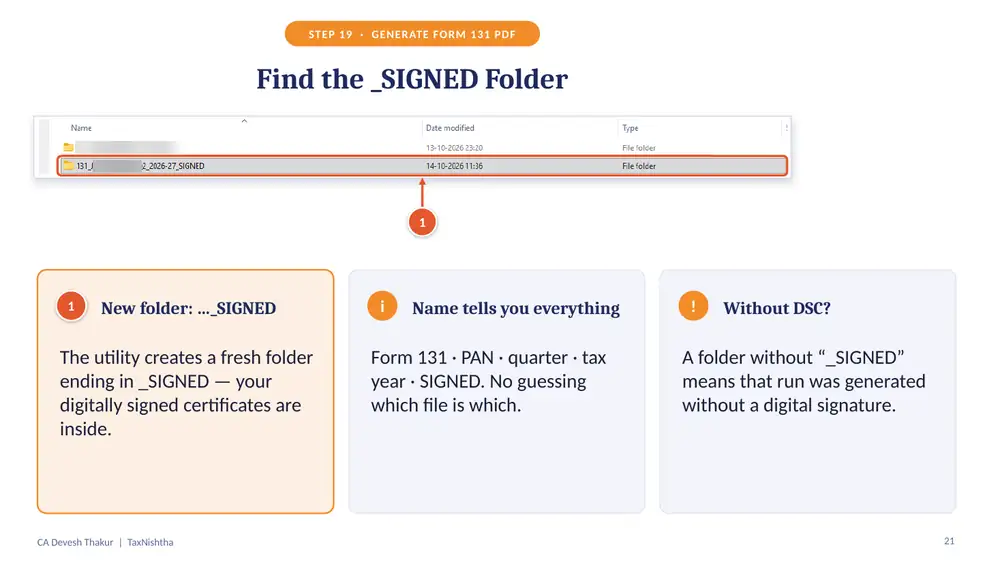
The utility creates a new folder whose name ends in _SIGNED; your digitally signed certificates are inside. Each file name tells you the form (131), PAN, quarter and tax year, so there is no guessing which file is which. A folder without “_SIGNED” means that run was generated without a digital signature.
Step 20: Your Form No. 131 is ready
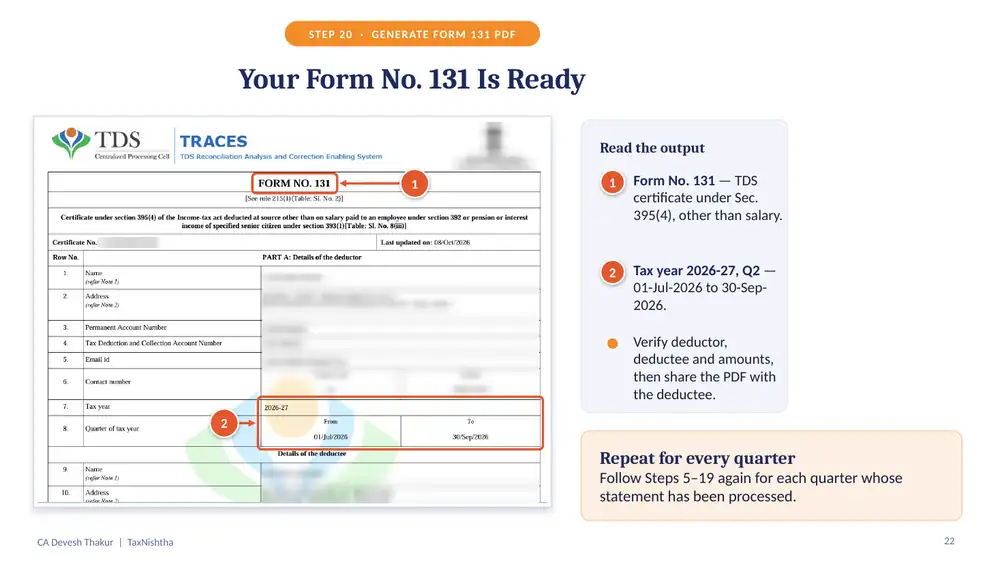
The PDF shows Form No. 131, the TDS certificate under Sec. 395(4) for payments other than salary, for Tax Year 2026-27, Q2 (01-Jul-2026 to 30-Sep-2026). Verify the deductor, deductee and amounts, then share the PDF with the deductee.
Repeat for every quarter
Follow Steps 5 to 19 again for each quarter whose Form 140 statement has been processed.
Key Points to Remember
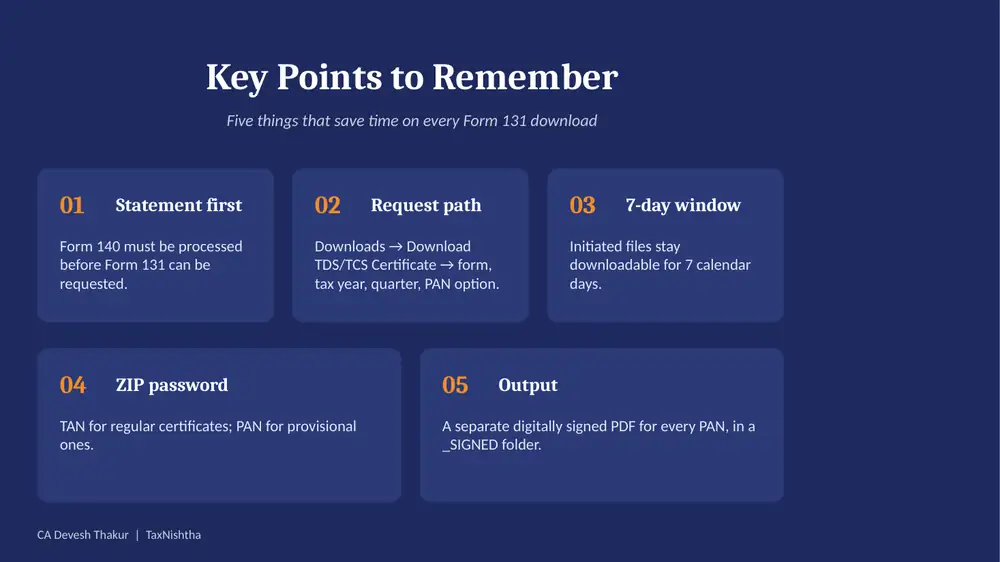
- Statement first: Form 140 must be processed before Form 131 can be requested.
- Request path: Downloads → Download TDS/TCS Certificate → form, tax year, quarter, PAN option.
- 7-day window: initiated files stay downloadable for 7 calendar days.
- ZIP password: TAN for regular certificates; PAN for provisional ones.
- Output: a separate digitally signed PDF for every PAN, in a _SIGNED folder.
Common Errors and Quick Fixes
| Problem | Likely reason | Fix |
|---|---|---|
| Cannot request Form 131 | Form 140 statement not yet processed | Check status under View Filed Forms; wait for processing |
| Download link missing | More than 7 days since the request | Initiate a fresh request |
| ZIP will not open in the utility | Wrong password or old utility version | Use the TAN (PAN for provisional); download the latest utility |
| Utility does not start | .dll files moved out of the folder | Re-extract the full package and run from that folder |
| Sign & Download is greyed out | No DSC ticked, or DSC has expired | Tick a valid deductor DSC; check the expiry date |
Frequently Asked Questions on Form 131
What is Form No. 131?
Form No. 131 is the quarterly TDS certificate for payments other than salary, issued by the deductor to the deductee under Sec. 395(4)(a) of the Income-tax Act, 2025. It replaces the earlier Form 16A.
Has Form 16A been replaced by Form 131?
Yes. For Tax Year 2026-27 onwards, the non-salary TDS certificate is Form No. 131. Certificates for periods under the Income-tax Act, 1961 are still handled through the old TRACES menu.
How do I download Form 131 from TRACES?
Log in to TRACES with your TAN, confirm the Form 140 statement is processed, go to Downloads → Download TDS/TCS Certificate, select Form No. 131, tax year and quarter, initiate the request, download the ZIP and convert it to PDF with the PDF Generation Utility.
What is the password of the Form 131 ZIP file?
The password is the TAN of the deductor. For provisional certificates, the PAN is used.
Why can’t I request Form 131 on TRACES?
Form 131 can be requested only after the quarterly TDS statement in Form 140 (or Form 144) has been processed. Check the status under e-File & View → View Filed Forms & Statements first.
How long is the Form 131 ZIP file available for download?
Requested files stay available for 7 calendar days from the date of the request. After that, you must initiate a fresh request.
What is the due date to issue Form 131?
Within 15 days from the due date of the quarterly TDS statement: by 15 August for Q1, 15 November for Q2, 15 February for Q3 and 15 June of the next year for Q4.
Can I generate Form 131 without a digital signature?
Yes, the utility can generate PDFs without a DSC, but the certificate must then be signed manually by the deductor before it is issued to the deductee.
Can a deductor prepare Form 131 on its own?
No. Form 131 must be downloaded from TRACES. A certificate prepared by the deductor in any other way is not a valid TDS certificate.